
Coming soon · Release date TBA
UpdatedMortuus Linux Guide: Native Support and Steam Setup
Check Mortuus Linux support, native demo launch options, Steam Deck status, and co-op basics. Get ready for changing maps and round-based zombie survival.
Jump to
Does Mortuus Support Linux?
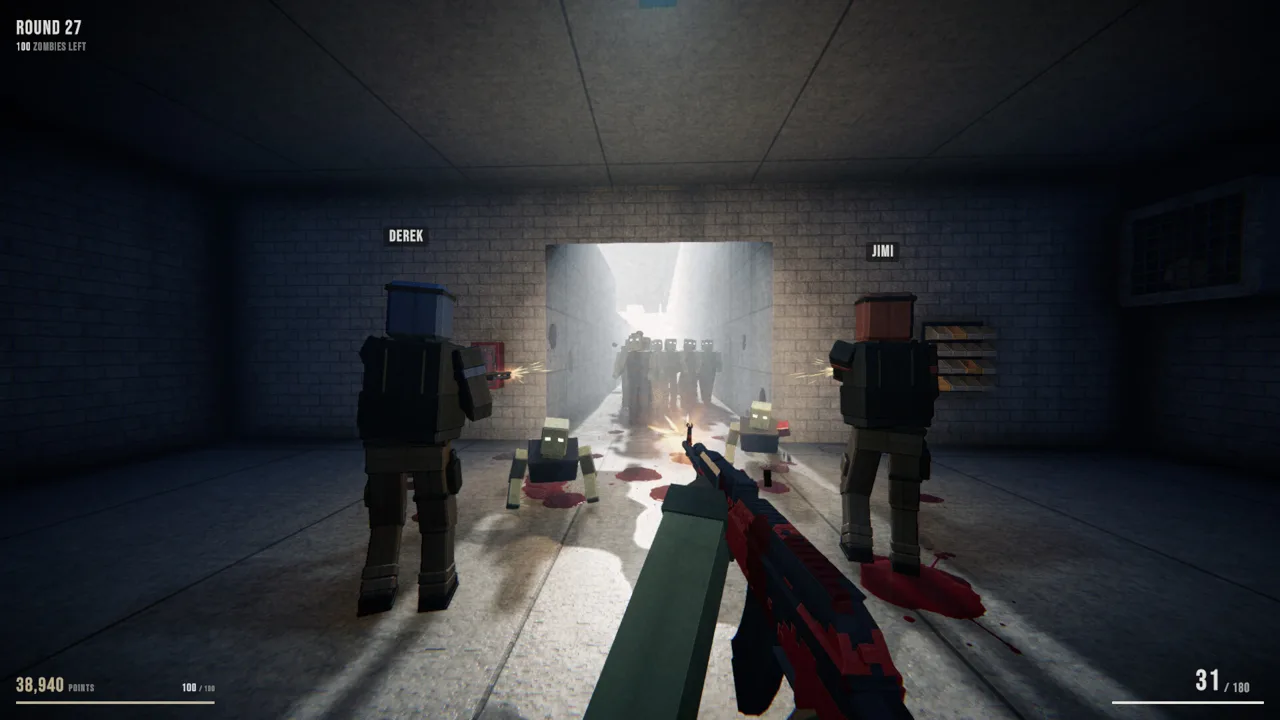
Mortuus Linux support brings Hamuno’s round-based zombie shooter to your desktop with a native demo build. That matters when you want to spend your evening surviving waves instead of figuring out whether you need to run a Windows executable. This Mortuus Linux guide covers the native launch configuration, Steam Deck status, and survival basics before you step into a freshly generated map.
Yes, Mortuus supports Linux. The full game’s supported platforms include Linux, Windows, and macOS, and the demo has a separate Linux download depot containing a native executable.
As of October 20, 2026, the full game is marked Coming soon, while the demo is available. Keep those versions separate when deciding what to download: the demo has its own Steam app ID, files, and updates.
| Item | Status as of October 20, 2026 |
|---|---|
| Full game Linux support | Linux is a supported platform |
| Full game release | Coming soon |
| Demo availability | Available on Steam |
| Native Linux demo files | Separate Linux depot |
| Full game Steam app ID | 3680170 |
| Demo Steam app ID | 5363350 |
Head to the Mortuus Steam page to access the demo or wishlist the full game. For playing now, focus on the demo rather than the unreleased main application.
The distinction also matters when discussing technical problems. “Mortuus on Linux” can refer to different applications, so include the demo name when asking for help with its current build.
Getting Started With the Native Mortuus Linux Demo
The Mortuus Linux demo includes an executable named Mortuus.x86_64. Its Linux launch entry uses Vulkan and includes arguments that select the renderer and write a log.
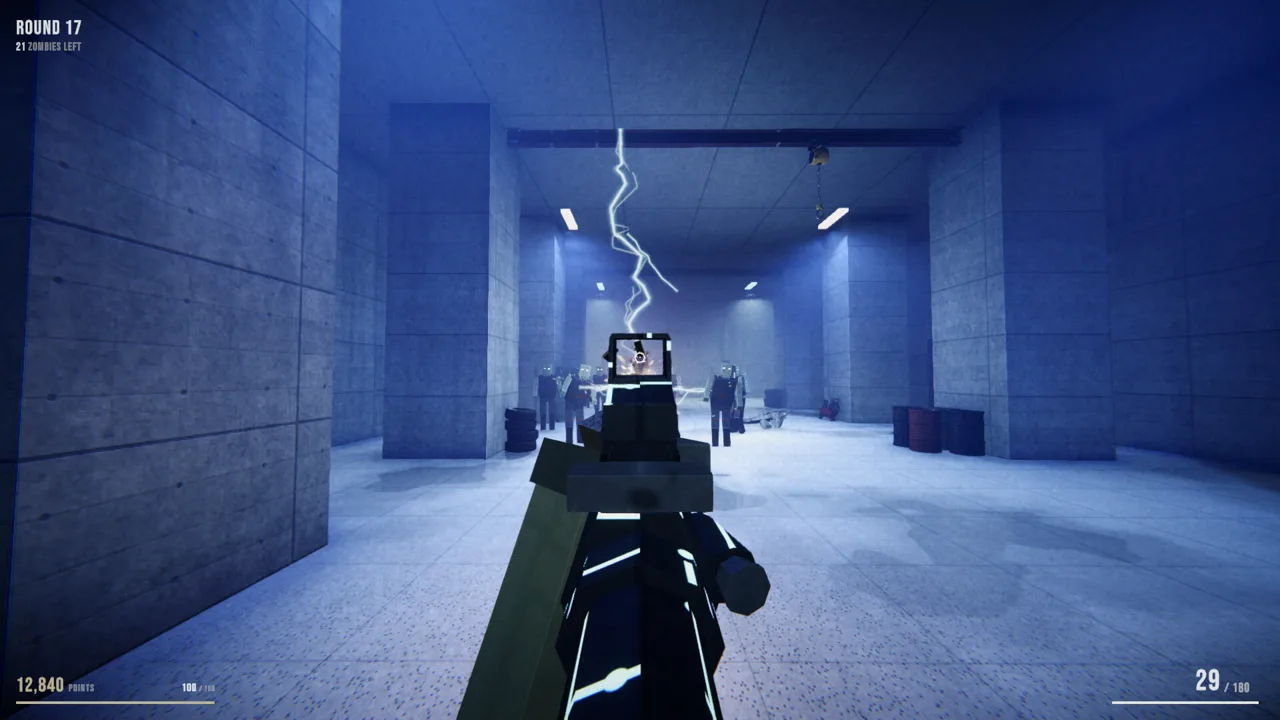 Image: Steam / Hamuno
That gives you a concrete starting point: use the native Linux demo configuration when you want to try the Linux build. There is no reason to begin by treating the game as a Windows-only release.
| Native demo detail | Value |
|---|---|
| Linux executable | Mortuus.x86_64 |
| Linux launch entry | using Vulkan |
| Launch arguments | -logFile latestLog.txt --force-vulkan |
| Linux depot ID | 5363352 |
| Linux depot size | 353.53 MiB |
| Linux depot download size | 175.83 MiB |
Those storage figures describe the Linux depot in the October 20 snapshot. They are useful for understanding the demo’s download footprint, but they are not the full game’s final installation requirements.
The launch arguments also deserve a quick explanation. --force-vulkan selects Vulkan for that entry, while -logFile latestLog.txt names the log file. Preserve the spelling if you are comparing your launch configuration with the native entry.
Keep the platform’s existing launch arguments intact while getting started. Changing several things before your first launch makes it harder to tell which configuration you actually tried.
Keep the Demo and Full Game Separate
The demo uses app ID 5363350; the full game uses 3680170. Record the appropriate ID alongside the application name when describing a launch issue.
For a useful technical question, include:
- Whether you launched Mortuus Demo.
- Your Linux distribution and graphics hardware.
- The launch entry you selected.
- The exact error message or point where the application stopped.
Describe what happened plainly. “The Vulkan launch opens a window and then closes” gives someone more to work with than “Linux is broken.”
The Mortuus Linux demo’s public branch was updated on October 20, 2026. When discussing behavior across updates, include the build you played so another player can compare the same version.
Mortuus on Steam Deck: Current Compatibility Status
Native Linux support and a Steam Deck compatibility rating answer different questions. Mortuus has Linux support, while Valve’s compatibility status for the full game is Unknown as of October 20, 2026.
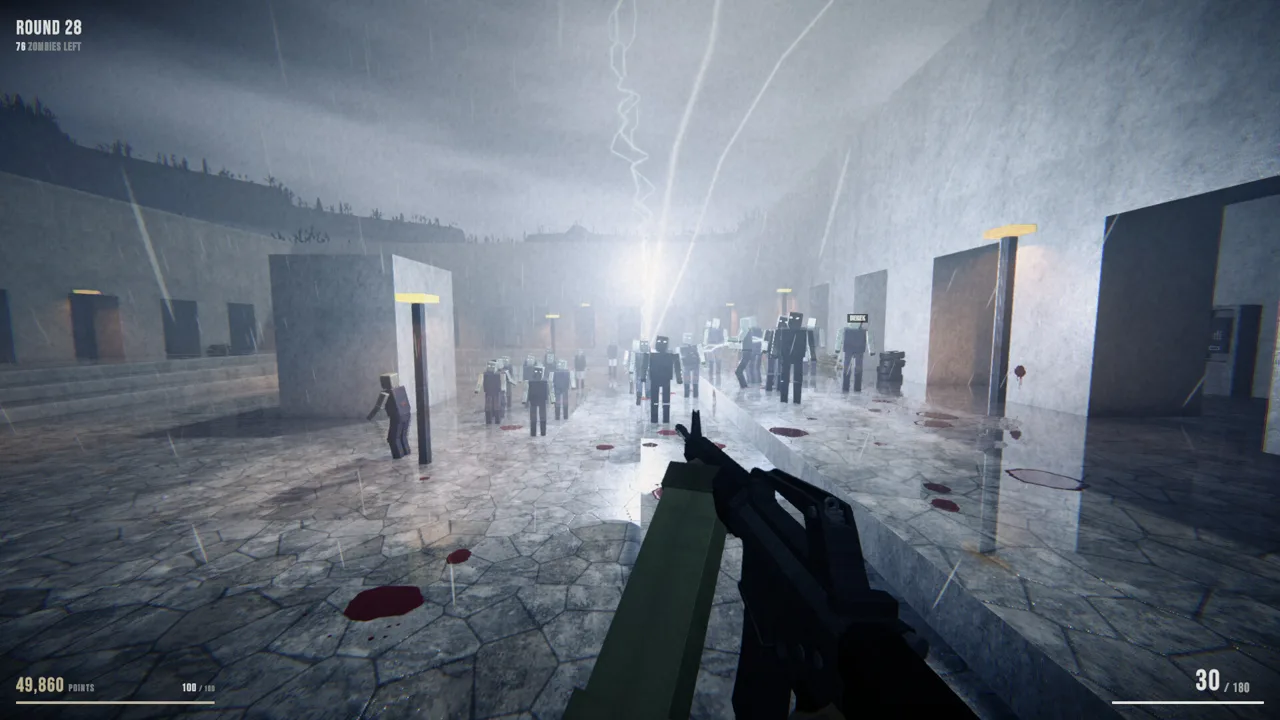 Image: Steam / Hamuno
| Compatibility item | Current detail |
|---|---|
| Full game Steam Deck rating | Unknown |
| Full game SteamOS / Linux rating | Unknown |
| Native demo Linux launch entry | using Vulkan |
| Additional demo launch entry | using OpenGL (Better for SteamDeck) |
| Full game controller feature | Full controller support |
The demo includes an additional launch entry labeled using OpenGL (Better for SteamDeck). Keep that exact wording in mind when examining its launch choices. The label identifies an OpenGL option aimed at Steam Deck use; the full game’s Valve rating remains a separate status.
For a Mortuus Linux session on a desktop, the explicitly Linux-tagged launch entry is the Vulkan one. For a handheld session, pay attention to which renderer you select and include it when describing your results.
Mortuus also supports controllers, including DualShock and DualSense support in the full game’s feature set. Controller support is useful context for handheld players, while the Deck rating tells you about Valve’s review status.
Set up a comfortable picture before committing to a long survival attempt. Mortuus has a film-grain intensity adjustment in its graphics settings. Lower the film grain if it makes enemies or environmental details harder to read.
Use that adjustment for visual comfort. Keep renderer selection and image effects as separate decisions so you can judge each change clearly.
What Awaits You Beyond the Linux Setup
The reason to get Mortuus Linux running is its survival loop: fight through a round, spend points, choose an upgrade, and keep going as the pressure rises.
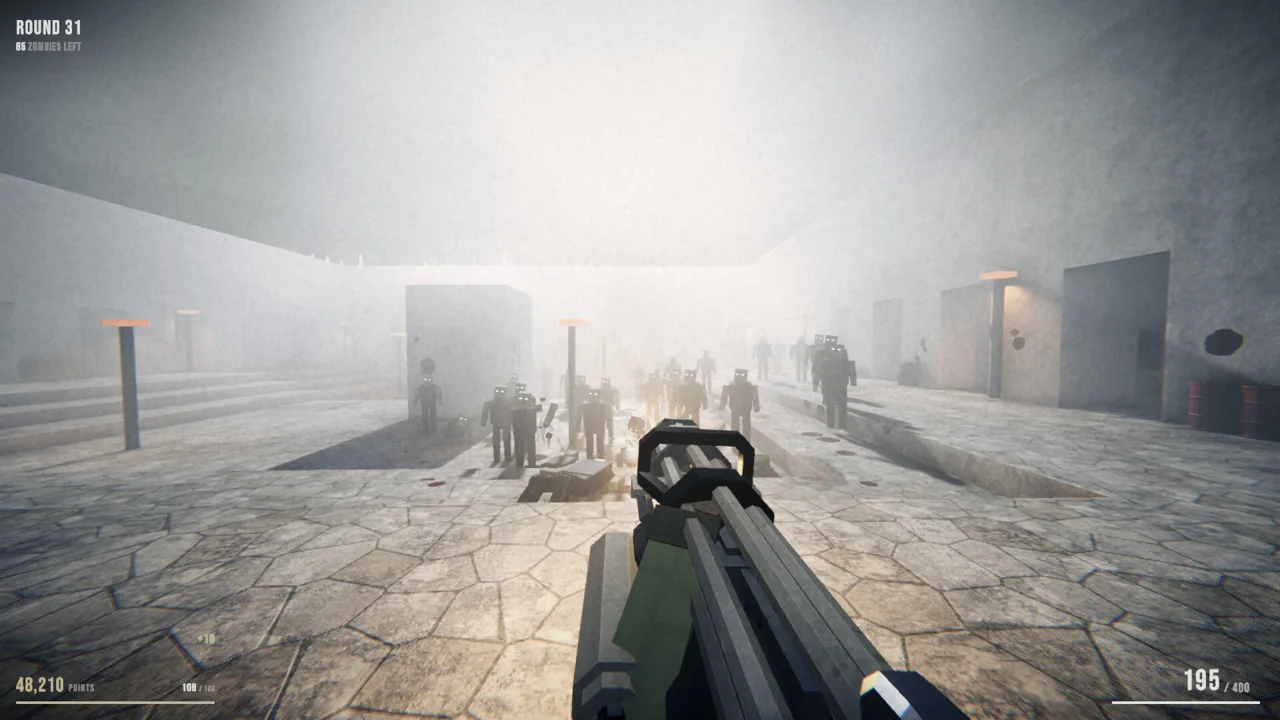 Image: Steam / Hamuno
Mortuus supports solo play and online co-op for up to four players. Its brutalist environments are procedurally generated, with rooms, corridors, courtyards, and dead ends rebuilt between runs. Daylight, nighttime, clear weather, and storms add further variation.
That changing layout affects more than the scenery. Doors, perk machines, the mystery box, and routes through the environment move between runs. Remember how the systems work, then read the new map in front of you.
| System | How it works |
|---|---|
| Map expansion | Spend points on doors and clear debris to open more of the environment |
| Weapons | Obtain guns from wall locations or the mystery box |
| Perks | Buy perks from machines distributed around the map |
| Gun Ascension | Spend resources at an altar and choose how a weapon improves |
| Upgrade draft | Choose one upgrade after each round |
| Enemy variety | Face regular zombies, special enemies, and boss fights |
The full game’s feature set includes more than 30 guns and five elements. Those features sit alongside perks, repeated Gun Ascension purchases, and the round-end draft, giving you several decisions beyond which weapon to carry.
Build around the weapon and upgrades you actually have. Choose draft options with your current setup in mind instead of planning around a gun you have not found.
Combat also includes location-based dismemberment. Shooting a zombie’s legs can leave it crawling, while powerful weapons can punch through bodies. Death effects include burning and shattering, depending on how an enemy dies.
Enemy movement demands attention, too. Some zombies pursue you directly, while others cut you off or move around. Later threats include the Lope, which moves on its arms, and the Skitter, which travels across ceilings.
Watch the space above and around your route as well as the horde ahead. A clear doorway only solves the immediate problem; keep checking where enemies are approaching from.
Mortuus Linux Survival Tips for Your Opening Runs
Once your Mortuus Linux setup is ready, focus on learning the game’s systems. A memorized route will only take you so far when the next run rearranges the environment.
1. Read the Layout Before Spending Heavily
Doors and debris control access to more of the map, and opening them costs points. Look at the space available before spending on expansion.
Trace a retreat route through the rooms you can already reach. Notice narrow corridors, dead ends, and open courtyards so your next purchase serves a clear purpose.
Keep looking for the power switch as you explore. Navigation, weapon access, and perk-machine locations all compete for your attention, so check your surroundings between fights instead of relying on the previous run’s layout.
2. Remember Where Your Wall Gun Came From
Wall weapons have an important resource advantage: you can buy ammunition at the corresponding wall location.
Remember that position when you take the gun. With a changing map, a useful ammo location is something to identify again each run.
Max-ammo powerups and an upgrade card that returns bullets after a round provide other ammunition options. Treat those as part of your resource decisions, and keep track of your current ammunition before committing points elsewhere.
3. Give Each Upgrade Purchase a Purpose
Mortuus combines perk purchases, weapon upgrades, and the draft after each round. Pause long enough to consider how those systems fit your current run.
Choose an upgrade for the situation you are facing. If you intend to keep using a weapon, consider its Gun Ascension choices alongside your draft options.
Avoid buying something simply because you have enough points. Doors, perks, and weapon improvements all draw on resources you could spend elsewhere. Decide which problem you are trying to solve before making the purchase.
4. Communicate About the Map in Co-op
Online co-op supports up to four players, but a new layout means your teammates also need to find their bearings.
Call out the power switch, perk machines, mystery box, and useful wall weapons when you locate them. Use recognizable room features when describing a location.
Discuss door purchases before spending. Shared knowledge of the open routes makes it easier to coordinate movement when some zombies chase directly and others approach from another direction.
5. Adjust Visual Comfort Before Chasing Longer Runs
Reduce film-grain intensity if the effect strains your eyes. Clear recognition of enemies, doorways, and environmental details matters during a crowded fight.
Make that adjustment early, then return your attention to movement and resources. The useful goal for an opening session is straightforward: learn how to navigate a changing layout, refill a weapon, and make deliberate upgrade choices.
Download the Mortuus demo through Steam and start with those systems. Each run gives you a different map to read and another set of decisions to make.
FAQ
Does Mortuus Linux have a native build?
Yes. Mortuus supports Linux, and the demo includes a native Linux depot with the executable Mortuus.x86_64. Its Linux launch entry uses Vulkan.
Is the full version of Mortuus available?
As of October 20, 2026, the full game is marked Coming soon. The demo is available through Steam as a separate application.
Is Mortuus Steam Deck Verified?
The full game’s Steam Deck compatibility rating is Unknown as of October 20, 2026. The demo includes a launch entry labeled “using OpenGL (Better for SteamDeck).”
Can you play Mortuus solo or with friends?
Mortuus supports solo play and online co-op for up to four players. Its survival design combines round-based combat, procedurally generated maps, weapon purchases, perks, and upgrade choices.
Continue with
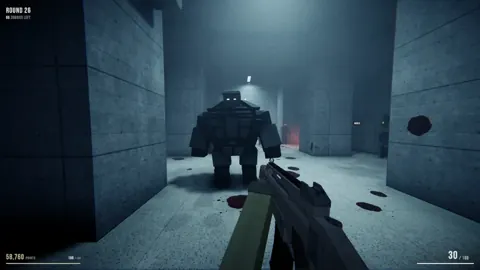 Mortuus Mac Guide: Requirements, Demo, and Co-Op PlayMortuus Mac guide covering macOS requirements, Apple silicon and Intel support, the free Steam demo, and co-op features. Get ready for your zombie run.
More in Platforms
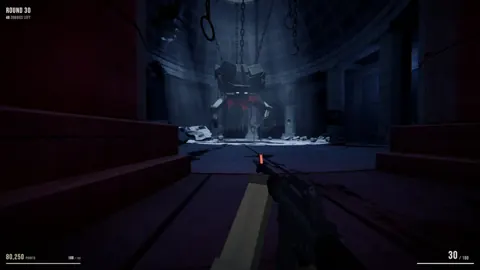
Mortuus Steam Guide: Free Demo, Co-Op, and PC Specs
Explore the Mortuus Steam demo, four-player co-op, PC requirements, controller support, and beginner tips. Download the demo and prepare for your next run.
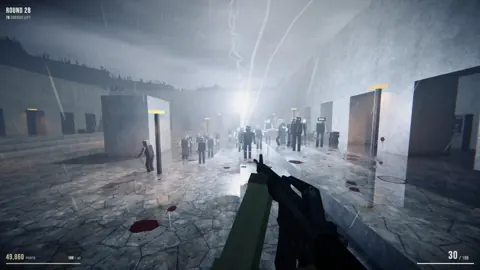
Mortuus System Requirements: PC, Mac, and Linux Guide
Check Mortuus system requirements for Windows, Mac, and Linux, compare minimum and recommended specs, and see how the free demo fits your gaming setup.
Join the community
Official channels for news, updates and player help: